


What is the new POLAR enhancement?
Outcome Health has developed a new function of assigning roles and setting role-based permissions in the recent POLAR enhancement. The enhancement aims to simplify the set up process whenever a new report is available in POLAR. It enables all POLAR practices to set user permission on viewing reports and Walrus notifications according to user roles, in a more efficient way. The new function will not affect accessibility to reports for existing users unless changes are made by the POLAR admin.
What are the roles?
There are six roles created from the new release:
- Doctor
- Nurse
- Reception
- Practice manager
- Default*
- POLAR admin**
Each of these roles can have report access permissions preset. When a new staff member joins the practice, they will have access to specific reports or notifications when assigned a POLAR user account correlating to their role.
*The ‘Default’ role has access to all the reports or notifications which are available to practices with POLAR or Walrus, but without the ability to remove reports even it’s not relevant to the user’s position.
** The ‘POLAR admin’ role can control report access to other users in the practice and alter the role’s permission. It can also make changes to the clinic and the site registrations which is the same as the admin tick box previously used.
Whenever a new POLAR user account is created, the role will appear as default but can then be changed by POLAR admin who can assign a more appropriate role for the user.
How to assign roles?
Self-permission can be checked/set by clicking on “My Profile” on the POLAR menu.
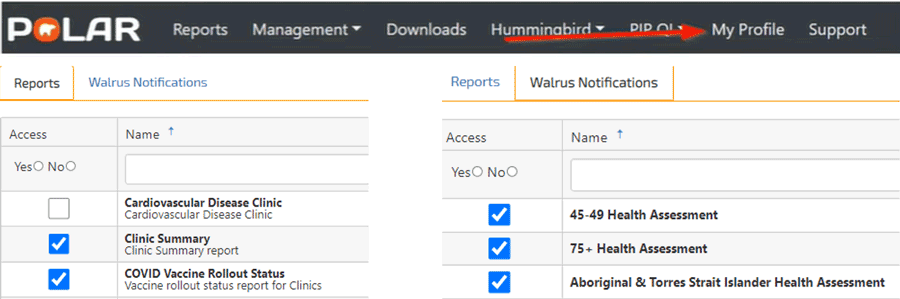
As mentioned previously, POLAR admin is the only role which can assign roles to others and define the role’s permission and what reports can be accessed.
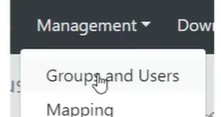
To assign roles for other users, the POLAR admin user needs to select “Groups and User” via “Management” on the POLAR menu.
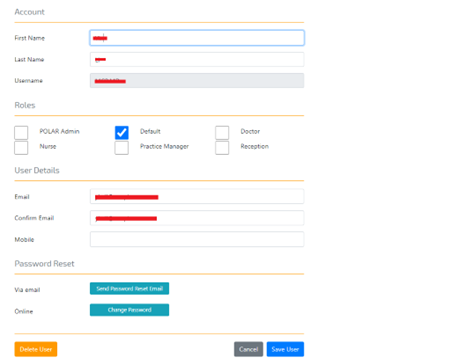
A list of POLAR users appears on the left-hand side, available reports/notifications for the role can be found on the right-hand side. Admin users can edit other user’s roles by double-clicking on the user’s name under the user account.
The admin user can then enable or disable a role/roles by ticking or unticking the box under the role section.
How to set permissions?
To set permission for each role, the admin user can click on “Roles” above the Reports/Walrus notification screen to define the accessibility of each role.
As mentioned before, apart from the Default role which has access to everything and cannot be altered, all other roles can be edited according to practice’s needs.
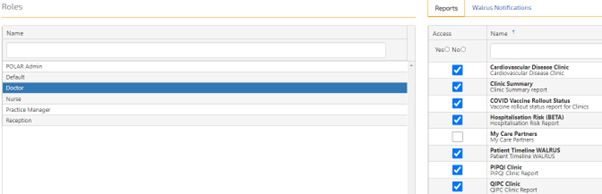
Once role permission has been defined, the accessibility reason of each report will appear by hovering at the ticked boxes.

The same logic applies to Walrus notifications.
Scenarios of setting roles and role-based permissions in general practice
Scenario 1:
SWS medical centre is one of the POLAR practices. POLAR admin user Ben has set permission for each role. For the “Doctor” role, he only sets access permission on reports A and B as they are both clinically-related.
Samantha is a newly joined GP to SWS medical centre. As Ben has preset access permission for “Doctor” after Samantha registered her POLAR account, Ben only needs to assign Samantha’s role as “Doctor”, without any other set up. Samantha will automatically have permission to view report A and B.
Scenario 2:
Outcome Health has released a new clinical report named ‘report C’.
All doctors who have a POLAR account in the practice can access the report. Instead of ticking report C access on an individual doctor’s POLAR account, Ben simply enables report C access permission to the “Doctor” role, allowing all doctors at the clinic with a POLAR account to view report C.
How to start?
Outcome Health has developed video demonstrations and step-by-step guides to assist practices utilising these two new functions (please use your POLAR credentials to login):
- Practice admins- set practice user role/s
- Practice admins- configuring practice roles
- Practice admins- configuring user permissions
Please contact your Practice Support Officer or Health Systems Improvement Officer if further support is required.